Getting started
Welcome to the Voyado Elevate "Getting Started" guide! This guide will help you quickly familiarize yourself with Voyado Elevate and explore its features. Whether you're interested in trying out a demo or a full custom integration with Voyado Elevate, this guide will provide you with the necessary steps to get started.
Credentials
To access an Elevate environment and explore its capabilities, you need credentials. The credentials consist of three parts:
Cluster ID- A public Cluster ID pointing to the retailers Elevate service. The Cluster ID is used for the site integration.Api Key- A private key. The private key is used when importing data and notifying customer interactions, such as orders to Elevate.- Elevate apps invitation mail - Used to access the web-based apps for reporting and merchandising.
Here is an example of how the Cluster ID and Api Key may look. Note that these examples are for illustrative purposes only, use the actual keys provided to you. Throughout this documentation, these example credentials are used as placeholders. When accessing specific environments, make sure to use the corresponding keys provided to you by Voyado.
Cluster ID: w1A2B3C45
Api Key (private): pkA123456789AB1BDA3E968F69A97B5508BF5B123456778912FFC99
Live demo
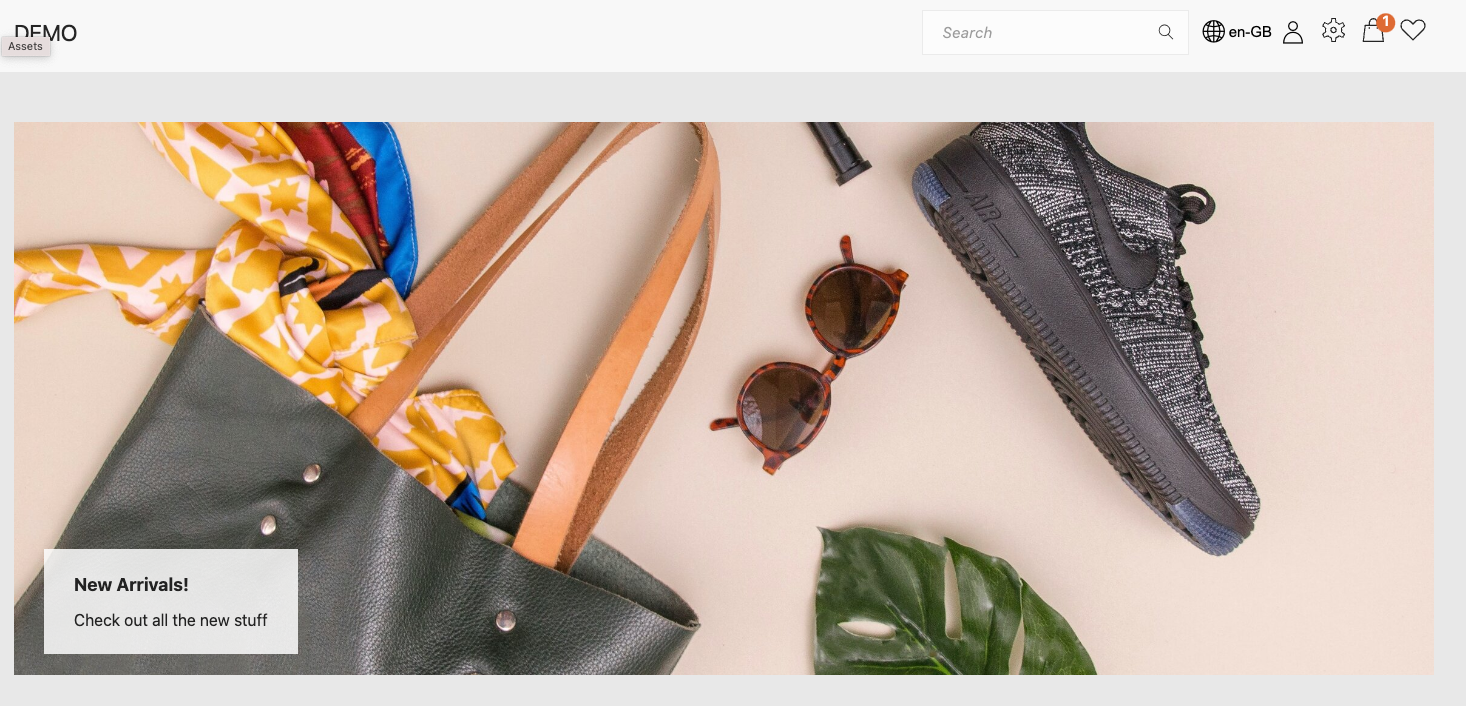
To get started, access the demo site that is fully integrated with a Voyado Elevate cluster. The cluster comes preloaded with demo data and will henceforth be referred to as the demo cluster.
Go to the demo site to experience the product firsthand and understand how it can be integrated with your own online store. The search, autocomplete, product listings, recommendations, and navigation on the site are all powered by Voyado Elevate.
Site integration
To integrate your own website with the demo cluster, try out the Storefront API that Elevate offers. Experiment with how to integrate Elevate functionality on your own site.
Demo cluster access
To make queries and notifications to a cluster, you only need the webApiId of the credentials. For the demo cluster, use:
Cluster ID: w47231AC8
All queries must contain valid market and locale parameters, which are aligned with the data loaded in the cluster. For the demo cluster, the following values are valid:
market: UK
locale: en-GB
Sample request
The first step is to execute a query. The following query corresponds to a search on 'top' but should of course in a real site integration correspond to the actual user input. Try it by pasting it in your browser.
https://w47231ac8.elevate-api.cloud/api/storefront/v3/queries/search-page?market=UK&customerKey=b5ffc7b8e476&sessionKey=f6c2d8f1be32&locale=en-GB&touchpoint=desktop&limit=60&skip=0&q=top
To explore and try out the Storefront API in its entirety, view the full specification here.
Custom data
To upload your own products, you'll need an isolated cluster. Contact info@voyado.com to request your Elevate environment. Once set up, you will receive an invitation email to the Elevate Apps. Cluster credentials can be found in the Integration App.
Configure markets and locales for your cluster via the Admin App or an import. After configuring your cluster, you can import custom catalog data using the standard HTTP POST protocol.
For import examples, refer to the Catalog Import Examples. The full specification is available in the Admin API Specification.
If the import completes successfully without any errors, you will receive a 204 OK response, confirming the data has been loaded.
The following example shows how to replace all catalog data in Elevate using your credentials and the catalog import file my-data.gz.
curl -i \
-X PUT \
-H 'Api-Key: pkA123456789AB1BE..' \
-H 'Accept-Encoding: gzip' \
-H 'Content-Encoding: gzip' \
-H 'Content-Type: application/jsonlines' \
"https://w1A2B3C45.elevate-api.cloud/api/admin/v4/import/catalog" \
-T my-data.gz
Cluster Settings
You can also test the demo site with your custom data. Connect the demo site to the public part of your cluster to view your data as soon as it’s loaded. You can use this setup as a tool for debugging, throughout the integration.
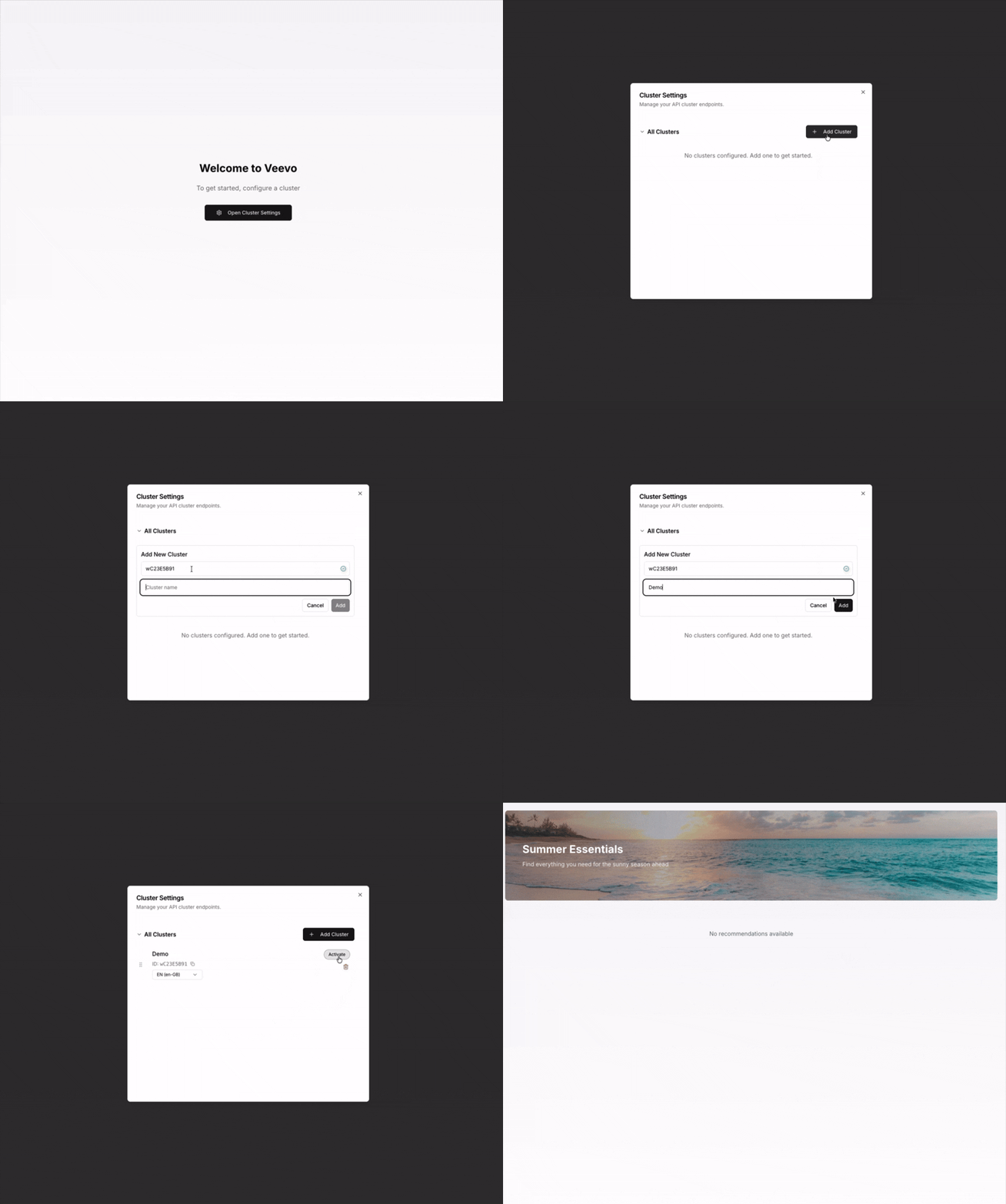
To connect the demo site to your cluster, go to the Cluster Settings and enter the Cluster ID of your cluster and select a market and locale combination from the dropdown menu. Once you've made these changes, press the activate button and explore the newly uploaded products by trying out searches and other interactions.
Next steps
The quality of the results depends on the catalog import quality and the notified user behavior, captured through real interactions. An accurate integration with proper UX also greatly impacts the quality and influences which features that can be enabled.
Voyado Elevate also offers data classification and image analysis. Note that related features, such as enhanced color search, may require activation by Voyado and some processing time before becoming active.
Next, proceed to the Integration section to continue your setup with Voyado Elevate.